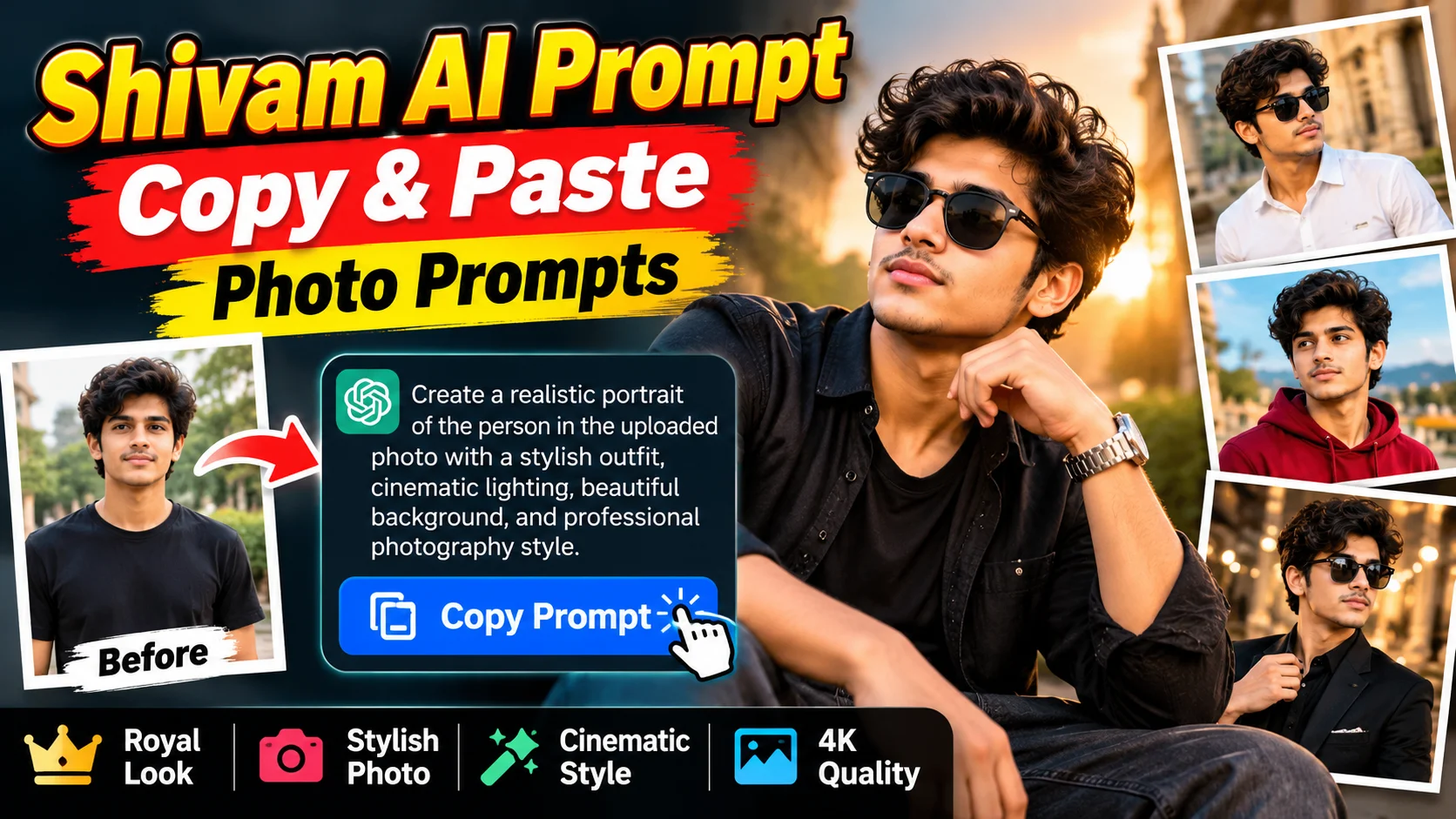

AI photo editing is becoming very popular on social media. Many people use AI tools to create stylish, realistic, and attractive photos. With the help of Shivam AI Prompts, you can transform your normal photos into amazing AI-generated images.
You do not need professional photo editing skills. Just copy a prompt, paste it into an AI photo editing tool, upload your photo, and generate your new image.
In this article, you will learn how to use Shivam AI prompts step by step and create stunning photos for Instagram, Facebook, WhatsApp, and other social media platforms.
What Is Shivam AI Prompt?
A Shivam AI prompt is a text instruction that tells an AI tool how to create or edit a photo. It can describe your clothes, hairstyle, background, lighting, pose, and overall photo style.
For example, you can use a prompt to create a royal look, a cinematic portrait, a traditional Indian look, or a stylish photo with a beautiful background.
The best part is that you can copy and paste ready-made prompts instead of writing everything yourself.
How to Use Shivam AI Photo Prompts
Follow these simple steps to create your AI photo.
Step 1: Choose Your Favorite AI Prompt
First, select a prompt based on the type of photo you want to create. You can choose a royal look, a stylish boy portrait, a cinematic photo, or a traditional outfit.
Step 2: Copy the Prompt
Copy the complete AI prompt. Make sure you do not miss any important instructions, such as the background, lighting, clothing, or photo quality.
Step 3: Open an AI Photo Editing Tool
Open an AI tool that supports image uploads and photo editing. Choose a tool that allows you to upload an existing picture and edit it using text instructions.
Step 4: Upload Your Photo
Upload a clear photo of yourself. A front-facing photo with good lighting usually works well. Make sure your face is clearly visible.
Step 5: Paste the AI Prompt
Paste the copied prompt into the tool’s prompt box. If the tool offers an image-editing option, select it before generating the result.
Step 6: Generate Your AI Photo
Click the Generate or Create button. Wait for the tool to process your request. It may take a few seconds or longer, depending on the tool.
Step 7: Download and Share Your Photo
Check the generated image. If you like the result, download it and share it on Instagram, Facebook, WhatsApp, or other platforms. If the image does not look right, try another prompt or upload a clearer photo.
Shivam AI Prompt Copy and Paste Examples
Here are three ready-to-use prompts to help you get started.
1. Royal Look AI Photo Prompt
Copy this prompt:
Create a realistic portrait of the person in the uploaded photo wearing a stylish black outfit with a luxury watch. Use a royal background with soft cinematic lighting, a confident pose, natural skin texture, sharp facial details, and professional photography quality. Keep the person’s original face and identity as close to the uploaded photo as possible. Create a high-resolution image with a premium and elegant look.
2. Stylish Boy AI Photo Prompt
Copy this prompt:
Edit the uploaded photo into a stylish young man’s portrait. Give him a modern outfit, a trendy hairstyle, and a confident pose. Use a beautiful urban background with cinematic lighting, natural colors, realistic skin details, and a professional photography style. Preserve the person’s original facial features and identity. Make the final image clean, sharp, attractive, and suitable for social media.
3. Cinematic AI Photo Prompt
Copy this prompt:
Transform the uploaded photo into a cinematic portrait. Add a beautiful outdoor background, golden-hour lighting, soft shadows, realistic colors, and a professional camera effect. Keep the person’s face natural and recognizable. Add detailed clothing textures and a balanced composition. Create a realistic, high-quality portrait suitable for Instagram and Facebook.
Tip: These prompts are starting points. Different AI tools may produce different results, so you can adjust the clothing, background, pose, and lighting to match your preferred style.
Tips to Get Better Results with AI Prompts
Follow these tips to improve your generated photos:
- Use a clear photo: Upload a picture with good lighting and a visible face.
- Write detailed prompts: Mention the outfit, background, pose, and lighting.
- Keep your face natural: Add instructions to preserve your original facial features.
- Try different styles: Test royal, cinematic, traditional, and modern looks.
- Check image quality: Make sure the face, hands, and background look natural.
- Use trusted AI tools: Review the tool’s privacy policy before uploading personal photos.
Remember that no prompt can guarantee a perfect result every time. You may need to generate multiple versions to get the image you want.
Frequently Asked Questions (FAQs)
What is a Shivam AI prompt?
A Shivam AI prompt is a text instruction that helps an AI tool create or edit photos in a specific style.
How do I use Shivam AI prompts?
Copy a prompt, open an AI photo editing tool, upload your picture, paste the prompt, and click Generate.
Can I use Shivam AI prompts for Instagram?
Yes. You can create stylish portraits and other images for Instagram, Facebook, WhatsApp, and similar platforms.
Are Shivam AI photo prompts free?
The prompts themselves can be copied and used for free. However, some AI photo editing tools may require payment, credits, or a subscription.
How can I keep my original face in an AI photo?
Upload a clear photo and include instructions such as “preserve the original facial features and identity.” Results can still vary depending on the AI tool.
Shivam AI Prompt: Copy & Paste Photo Prompts makes it easier to explore different AI photo styles without needing advanced editing skills. Choose a prompt, upload your picture, paste the instructions, and generate your image.
Try the royal, stylish, or cinematic prompts above and experiment with different backgrounds and outfits. With a little practice, you can create attractive AI photos for your social media profiles.